Blog Article
Claude Code Mods: Customize Your AI Coding Agent Without Losing Control
Anthropic introduced mods for Claude Code: small TypeScript functions that change how it works. Here is what the docs say, what a mod can reach, and the rule to set before anyone installs one.

Claude Code is Anthropic’s AI coding assistant. It reads your project, runs commands and changes code. Until now, shaping how it behaves meant waiting for Anthropic to ship a feature, or using hooks, which are scripts set in a settings file.
Anthropic has now introduced mods. A mod is a small TypeScript function that changes how Claude Code works. It can rewrite a prompt, add new screens, replace a built-in feature, or add something new. That is useful for a development team. It also means a new kind of code is running inside the tool that touches your source code. This post explains what Anthropic says, and the rule we think every business should set first.
What Did Anthropic Publish?
Anthropic’s announcement and Claude Code documentation describe mods like this.
- A mod is a function that hooks into an event. Each time Claude Code does something, such as calling a tool, asking for permission or drawing part of the screen, it emits an event. A mod can run before the event, after it, or instead of it.
- It can change what Claude does. Anthropic lists examples: rewrite a prompt before it reaches the model, block, rewrite or retry a tool call, approve or deny a permission request, and redact secrets from tool output before Claude reads it.
- It can also change what you see. A mod can edit or replace part of the interface, and add buttons and inputs. It can target the terminal, the desktop app, or both.
- Mods ship inside plugins. You install and share them like any plugin, from a marketplace. They work in the Claude Code command line and in the Code tab of the desktop app.
- Claude can write one for you. Anthropic says you can ask Claude Code to create a mod, and it can write the TypeScript, install it and reload it in your session.
- Some built-in features are now mods. The built-in
/difffeature is one, so you can turn it off or replace it. Anthropic says it plans to move more built-in features to mods over time.
Several mods can hook the same event. They run in the order they load, so the first to load sees the event first.
What Can a Mod Reach?
This is the part to read slowly. Anthropic’s announcement says mods run with the same access to your machine as Claude Code itself, and that they are not sandboxed. The documentation spells out what a loaded mod can do.
| A loaded mod can | What that means in practice |
|---|---|
| Act on your machine as you | Read and write files anywhere your account can, start programs, make network requests |
| Read your secrets | Environment variables and settings files, including an API key kept in either |
| See your session | Every prompt you send and every tool call Claude makes |
| Change your session | Rewrite a prompt or a tool call, or submit a prompt as if you had typed it |
| Act without asking you | Approve a tool call before you are asked |
| Spend your usage | Call a model on your plan or API key |
The docs add two details worth knowing. If you turn on sandboxing, it isolates the commands Claude runs, but a process that a mod starts runs outside it. And a mod can restyle much of the interface, but not the permission prompt. It cannot change what that prompt shows you.
Anthropic’s advice is plain: install mods only from sources you trust, the same way you would install any code on your computer.
What Controls Does Anthropic Offer?
For individuals, the docs describe a few steps.
- Look before you install. Running
claude plugin validateon a plugin’s folder lists the events the mod handles and what it asks Claude Code to do, without running it. - See what loaded. Running
/pluginin a session shows which mods are active. - Switch them off. You can disable one mod, start a session with
--safe-modeto turn off all of them for that session, or setdisableAllHooksto stop installed mods in every session.
For organizations, the docs describe managed settings.
- A built-in guard. On Team and Enterprise plans, and on any machine with managed settings, a built-in mod called
sec-defaultloads ahead of mods users install. Anthropic says it stops those mods from risky actions such as overriding your permission deny rules. For API-key and cloud-provider users, the guard loads where managed settings are present. - Admins can go further. The
allowManagedModsOnlyoption stops mods that users bring, while the organization’s own mods still run. Admins can also allow or block plugin marketplaces. - Mods can enforce policy. Anthropic gives examples of team mods: a pipeline status pane, a confirmation step before any command touches production config, and an audit log that records every call other mods make.
Anthropic notes that mods are on by default, so a team that does nothing gets the default guard and the default freedom.
Why Should Business Teams Care?
If you run a software team, or you pay an agency or contractor to build with Claude Code, mods change the question from “which AI tool do we use?” to “what code is running inside it?”
- Mods are code with your permissions. A helpful mod and a careless one have the same reach. The difference is who wrote it and who reviewed it.
- Reviewing is a real step. The docs give a way to list what a mod does before it loads. A team that never uses it is trusting names on a marketplace.
- Policy can live in code. The same feature that adds risk also lets a company build its own controls: a confirmation before production changes, an audit trail, a rule that secrets never reach the model.
None of this is a reason to avoid mods. It is a reason to decide who may install them.
A Short Checklist Before You Allow Mods
- Decide who may install mods. Developers on a personal machine and developers on a laptop with client code are different cases.
- Check your managed settings. If you use Team or Enterprise plans, or manage settings on company machines, find out what your setup does by default.
- Allow only approved sources. Limit plugin marketplaces to ones your team has reviewed.
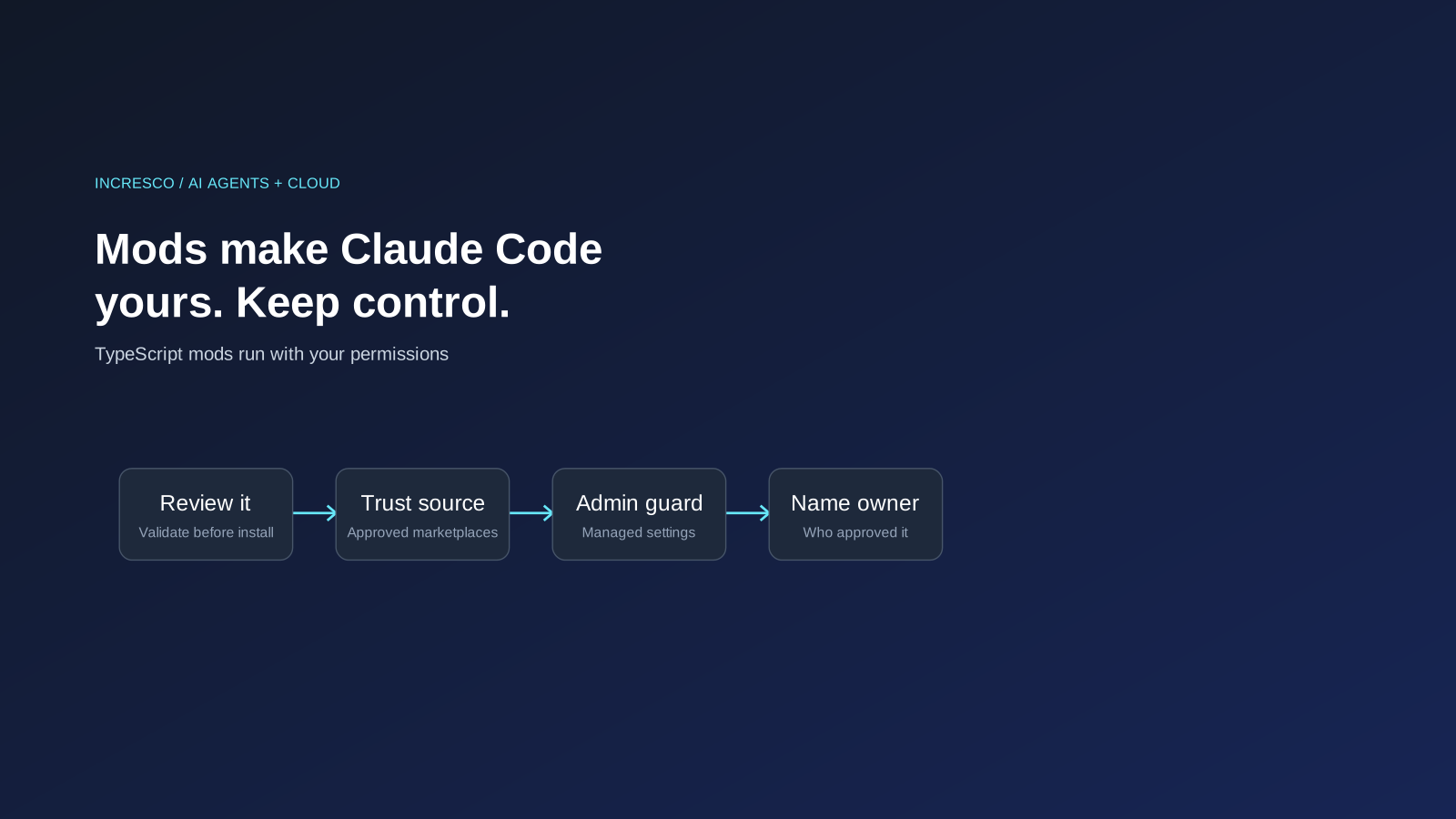
- Review before install. Run the validate command and read the events and calls it lists.
- Keep an audit trail. Decide how you will know which mods ran on a given day.
- Name an owner. One person should be able to answer “which mods are allowed here, and who approved them?”
The Rule to Adopt
Treat a mod like any code that runs with your developers’ permissions: nothing is installed until a named owner has reviewed what it does, from a source you have approved.
How Incresco Helps
Incresco is a Claude partner. We build web and mobile applications, cloud systems, Salesforce solutions, WhatsApp experiences and AI agents. For teams adopting AI coding tools, we help set the rules around them: who may install what, what is reviewed, and how it is logged. See our AI transformation, cloud and system integrations services.
Thinking about letting your team customize AI coding tools? Contact Incresco and ask for an AI tooling control review. We will go through how your developers use these tools today, what could reach your code and secrets, and tell you which rules to put in place first.
Related Articles
Business
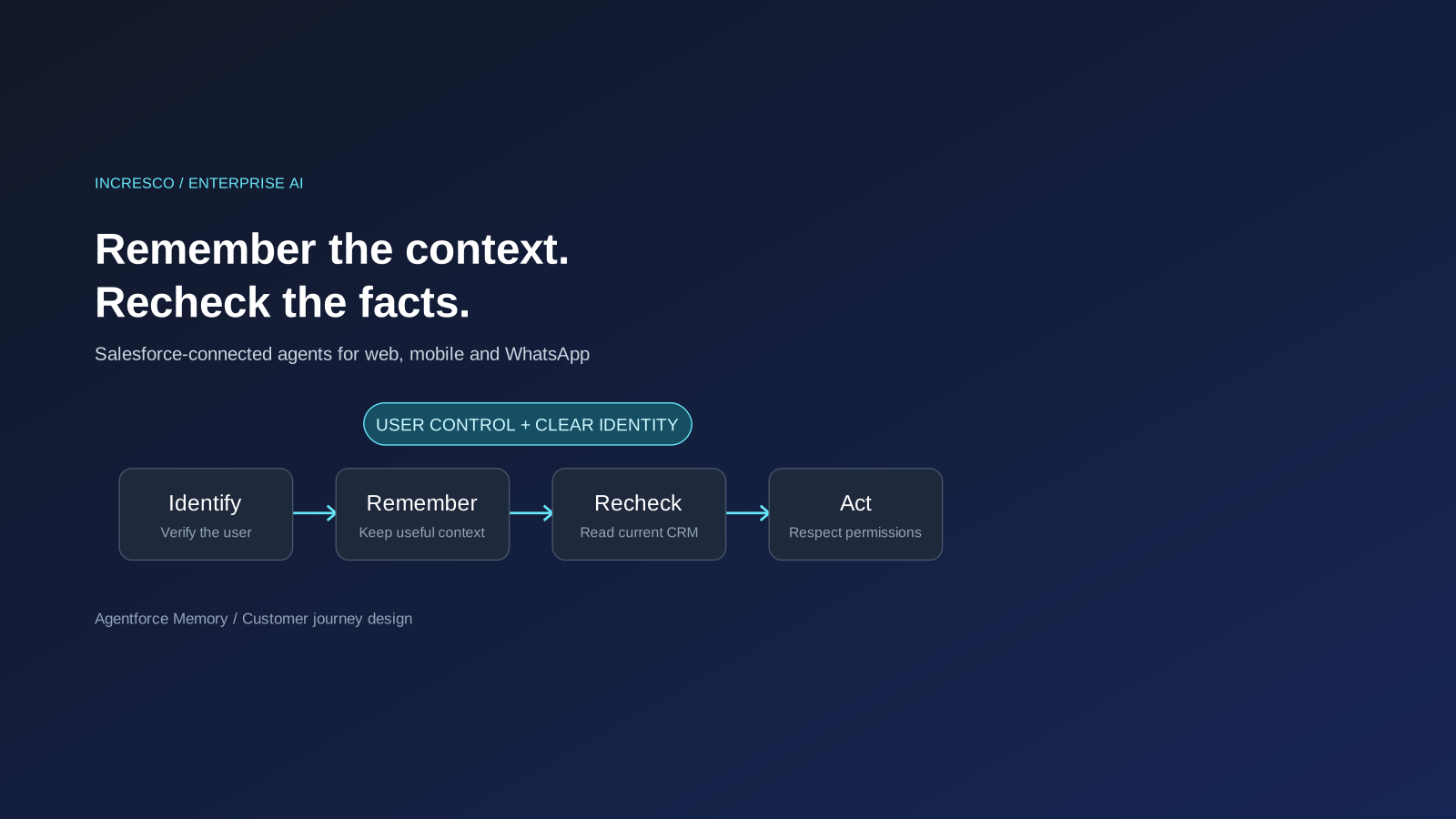
Agentforce Memory: What Salesforce and WhatsApp AI Agents Should Remember
Salesforce's new Agentforce Memory engineering article explains persistent context. What should web, mobile and WhatsApp AI agents remember, refresh or forget?
Read Insight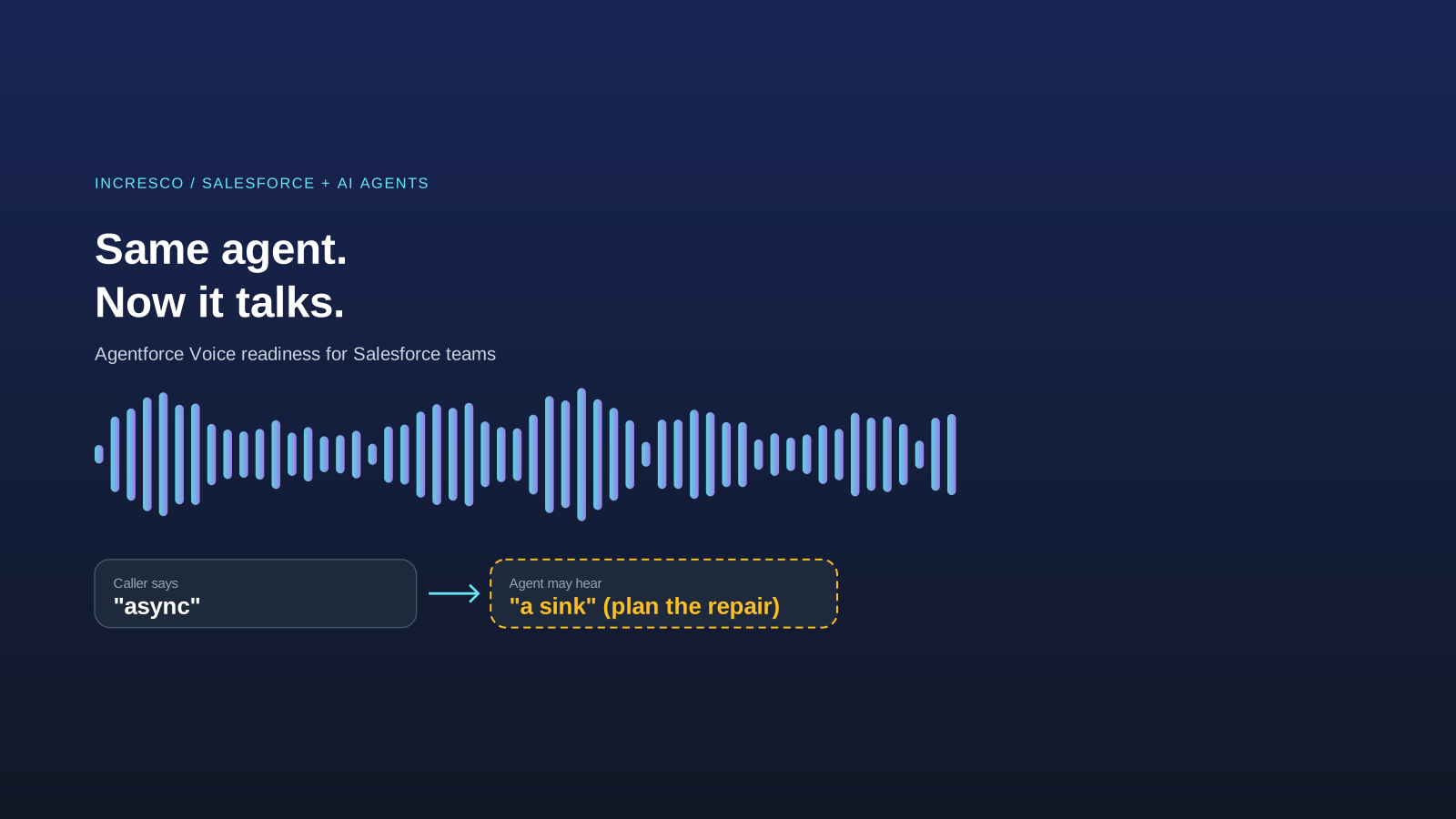
Engineering
Agentforce Voice for Agent Script: What to Check Before Your Salesforce Agent Starts Talking
Salesforce says you can add voice to an Agent Script agent without a rewrite. See what your org needs first and how to write agent instructions for the ear.
Read Insight